

Configuring Timeline Colours
Once timeline items are defined in ‘FG381 - Payroll Dashboard Configuration’, the colours need to be defined. This can be done via User Interface Configuration (UIC) in Express. Access to UIC Settings is controlled by assigning the UIC_CONTROLLER privilege to a role via ‘FE600 - Express Users/Group Security’.
Users assigned to the role will see the UIC Settings menu option when they login to Express.
To change the timeline colour, select the UIC Settings option from the menu.
Click on TIMELINE_COLOR under the UIC Setting column on the left. The UIC Details on the right will show the description and value of the timeline colours.
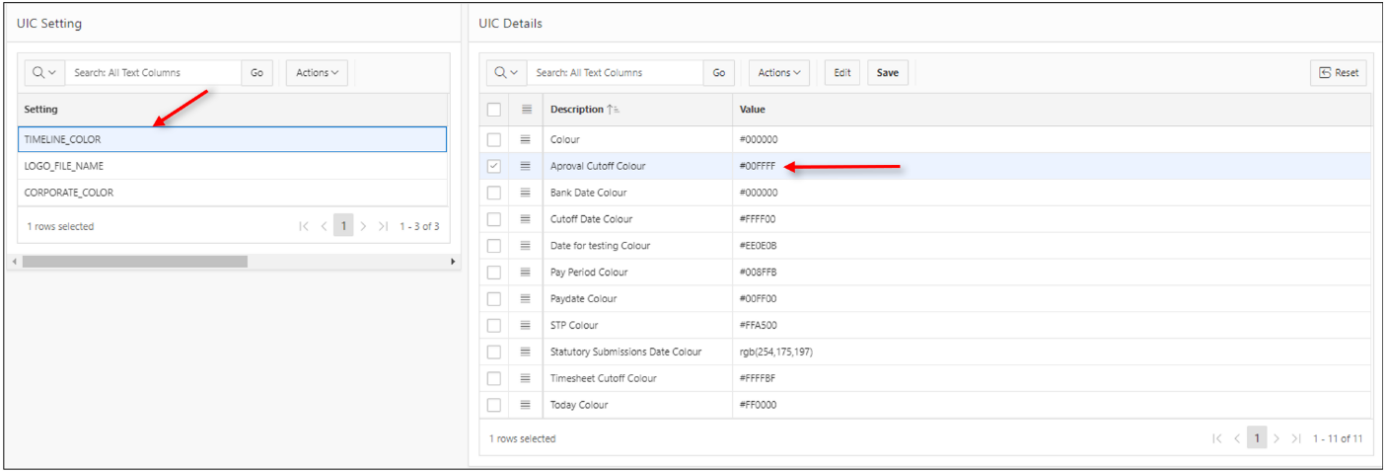
To change the colour, click once on the value field then click the Edit button, or double click on the value field to open in Edit mode. Type in the new colour and click on Save to commit the changes.
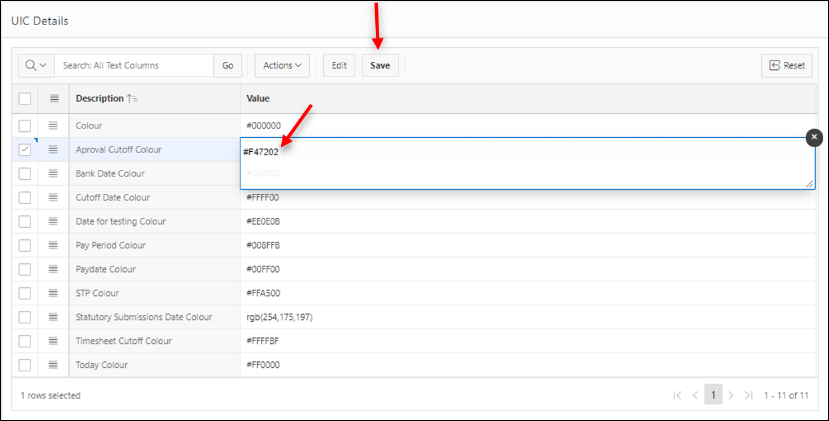
You will need to logout and back to see the changes applied.
The colour code must be HTML compliant. If not, no colour will be applied across the application. Colour codes may be written literally e.g., green, blue, red, alternatively it may be HEX colour codes in the format #FFFFFF or RGB codes in the format rgb(255, 255, 0).
Default colours are already defined for the following dates but may be changed as required:
|
Date |
Colour Code |
Colour |
|
#008FFB |
Azure |
|
|
Paydate |
#00FF00 |
Lime Green |
|
#FFFF00 |
Yellow |
|
|
STP Date |
#FFA500 |
Orange Red |